
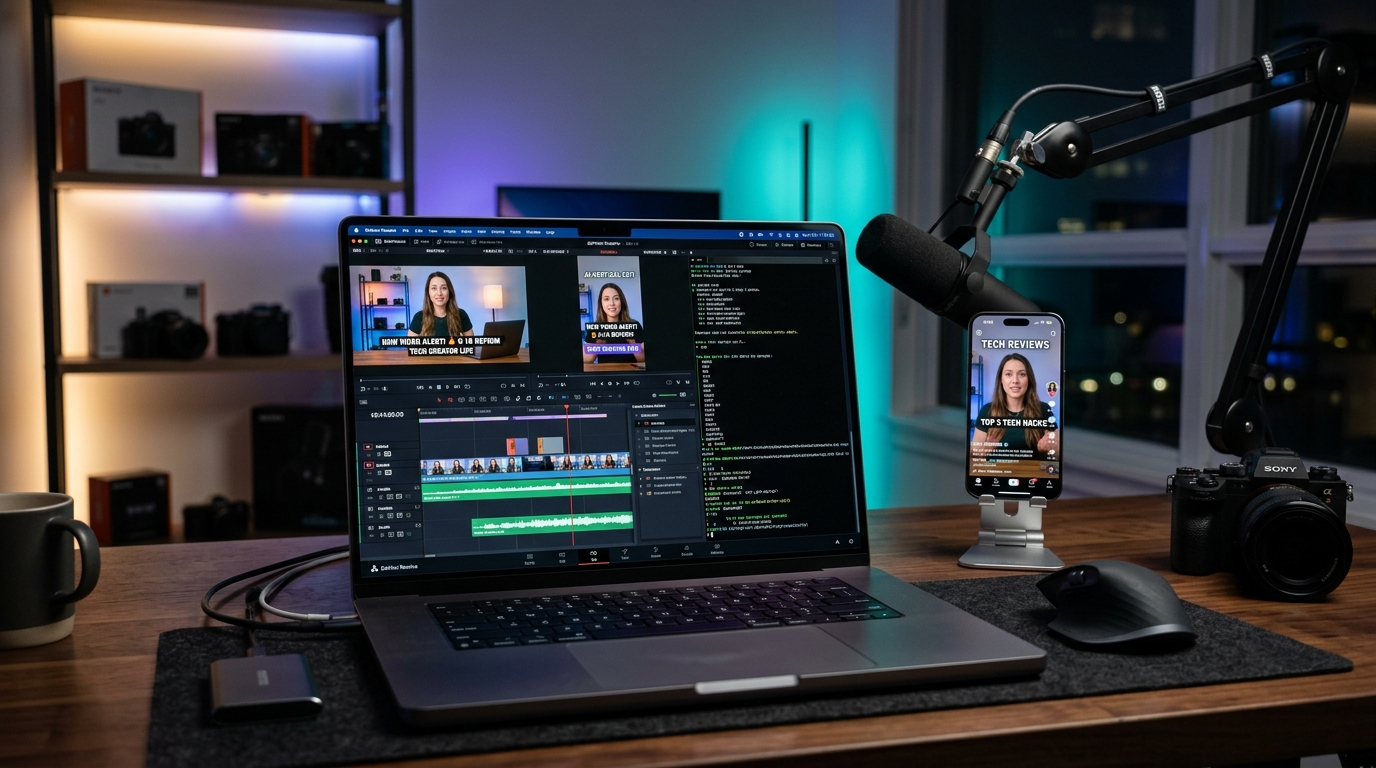
You've seen those short, punchy videos on TikTok and Instagram: a podcast guest drops a bombshell, big captions bounce across the screen, and you can't scroll away.
Most of those clips weren't filmed for TikTok. Someone took a long video, found the best 45 seconds, and repackaged it. It's called video clipping, and people are building real income from it.
The catch is that most guides push you toward $50 a month software with tight usage limits. There's a cheaper way, and you don't need to be technical to follow it. I'll walk you through it step by step.
What is video clipping?
Think of a 90-minute podcast. Maybe 3 minutes of it are pure gold: a funny story, a hard truth, a moment that makes you say "wait, what?"
Clipping means finding those moments and turning each one into a short, vertical video built for phone screens. A good clip has four things:
- A hook in the first 3 seconds. A bold claim, a question, or a strong reaction. If the opening is weak, people swipe.
- A phone-shaped frame. Widescreen video gets reshaped into a tall format, and the software follows the speaker's face so they stay centered.
- Animated captions. Words pop up as they're spoken, often highlighted in color. Most people watch with the sound off, so this matters.
- Tight pacing. No dead air, "ums," or awkward pauses.
Doing this by hand takes hours per video. AI tools now do it in minutes. They listen to the video and write out the transcript. Then an AI reads the transcript and picks the moments most likely to grab attention. Finally, the tool crops, captions, and exports the clips for you.
Can you actually make money from this?
Yes, video clipping is one of the lowest-friction, highest leverage online business models in 2026. Because you are repurposing existing footage, you don't need a high end camera, studio lighting, or on camera charisma.
Here are four ways people earn from it.
1. Sell it as a service. Every podcaster, coach, and course creator knows they should post daily. Most don't have the time. Your offer is simple: "Send me your weekly episode. Within 24 hours, you get 10 ready-to-post clips." Three clients at $1,000 a month each is $3,000 a month. Once your tools are set up, each video takes you around 15 minutes.
2. Get paid by TikTok. TikTok's Creator Rewards Program pays for videos over one minute that keep people watching. Pages built around one theme (self-improvement, business, true crime, tech) do well here. Earnings run roughly $0.40 to $1.20 per 1,000 views, so a clip that hits 3 million views could earn somewhere around $1,200 to $3,600. Those are outliers, but that's the ceiling people chase.
3. Play the long game on YouTube Shorts. TikTok clips tend to spike and fade within days. YouTube Shorts plug into YouTube's search and recommendations, so a useful clip (a coding tip, an investing lesson, a life hack) can keep earning for months.
4. Promote things people actually want. Your clips bring in free traffic, and a link in your bio turns it into income. Clip tech podcasts and promote AI tools. Clip finance experts and promote budgeting apps. Clip fitness coaches and promote equipment.
One honest warning: only clip content you have permission to use. That means your own videos, your clients' videos, or footage that's properly licensed or in the public domain. Cutting up someone else's podcast without asking can get your account flagged or worse. Agency work with clients who hand you their footage is the safest route.
Where should you post?
Post everywhere. The same clip can work on all four platforms with no extra effort.
- TikTok: The best place for getting discovered. It judges videos on watch time, so even a brand-new account can hit 100,000 views on day one.
- Instagram Reels: Great for building a brand. People here are more willing to click links and buy.
- YouTube Shorts: Huge reach, and clips keep getting found through search long after you post them. They also send viewers to your main channel.
- Facebook Reels: Underrated. It reaches an older audience (30 to 65+) that's often less saturated with short-form content.
The subscription trap (and how to skip it)
Search "AI video clipper" and you'll find a wall of paid tools. They look great, but the costs add up:
- $20 to $60 a month for basic plans
- A monthly cap of roughly 100 to 200 upload minutes. Two 90-minute podcasts and you're done for the month.
- Extra fees of about $0.20 to $0.50 per additional minute
- Watermarks on your videos unless you upgrade
Open-source tools work differently. "Open source" just means the software's code is public and free for anyone to use. That gives you:
- No limits. Process one video or a thousand.
- No subscription. The tool is free.
- Tiny running costs. The only thing you pay for is the AI that picks the best moments, and that's usually a couple of cents per video.
- A choice of where to run it. Use your own laptop (free), or rent a cloud computer. DigitalOcean's promotional credit can cover that for a couple of months.
4 free clipping tools you can use today
These four tools are hosted on GitHub, a website where developers share software. You don't need to understand code to use them. Just follow the steps in the next section.
| Tool | Stars on GitHub* | Best for |
|---|---|---|
| AI-Youtube-Shorts-Generator | 5,000+ | Full automation from a YouTube link |
| FunClip | 6,300+ | Multiple languages and a point-and-click interface |
| SupoClip | 1,100+ | An Opus Clip–style look and feel |
| Viral Cutter | 400+ | Fast, simple cuts |
*Stars work like "likes" for software. More stars usually means more people trust it.
1. AI-Youtube-Shorts-Generator (link)
This is the closest free alternative to paid tools like Opus Clip. Paste in a YouTube link and it downloads the video, transcribes it, has an AI pick the most shareable moments, reshapes them into vertical video, and adds animated captions. No watermarks and no limits.
2. FunClip (link)
Built by the research team at Alibaba's ModelScope. It has a visual interface that runs in your web browser. You read the transcript and select the words you want, and it cuts the video to match. It handles many languages, and it can tell different speakers apart, so you can pull out only what one guest said.
3. SupoClip (link)
Made to feel like Opus Clip. It tracks faces to keep the speaker centered, and it offers popular caption styles like the yellow-and-green bouncing text you see everywhere. It also installs with one Docker command (Docker is a tool that packages software so it runs the same everywhere).
4. Viral Cutter (link)
The lightweight option. It's quick, simple, and runs well even on an older laptop. Give it a video or link and it hands back clean vertical clips.
Star counts change constantly, so check each page for the latest.
Tutorial 1: Run it on your own computer (free)
Running it at home costs $0 in hosting. You'll pay only pennies to the AI service that picks your clips.
What you need first
Three free programs:
- Python (the language these tools run on)
- Git (downloads software from GitHub)
- FFmpeg (the engine that cuts, crops, and captions video)
Step 1: Install them
You'll type these into your computer's terminal, which is a window where you give the computer typed instructions.
Mac:
brew install ffmpeg git python@3.10
Windows (open PowerShell as Administrator):
winget install Gyan.FFmpeg
winget install Git.Git
winget install Python.Python.3.10
Linux (Ubuntu/Debian):
sudo apt update && sudo apt install -y ffmpeg git python3 python3-pip python3-venv
To check it worked, open a fresh terminal and type ffmpeg -version. If you see version info, you're good.
Step 2: Download the tool
We'll use the first tool as our example.
# Download the tool
git clone https://github.com/Anil-matcha/AI-Youtube-Shorts-Generator.git

# Move into its folder
cd AI-Youtube-Shorts-Generator

# Create a clean workspace so nothing clashes with other software
python3 -m venv venv

# Switch that workspace on
# Mac / Linux:
source venv/bin/activate
# Windows (PowerShell):
.\venv\Scripts\Activate.ps1

# Install everything the tool needs
pip install --upgrade pip
pip install -r requirements.txt
Step 3: Give it an AI key
The tool needs an AI to read the transcript and pick the best moments. You'll get an "API key" from a provider like OpenAI or Groq. Think of it as a password that lets the tool use their AI and bills you for what you use.
Create a file called .env in the project folder:
cp .env.example .env
Open it in any text editor and paste your key:
OPENAI_API_KEY=sk-your-openai-api-key-here
# Or GROQ_API_KEY if the tool supports Groq
On cost: analyzing a full 45-minute transcript with OpenAI's gpt-4o-mini typically costs a fraction of a cent.
Step 4: Make your first clips
python main.py
Paste in a YouTube link when it asks. The tool will then:
- Download the video
- Turn the speech into text
- Ask the AI to find the 3 to 5 strongest moments
- Reshape each moment into vertical video
- Add animated captions and save the finished clips in an
output/folder
That's it. You now have a clipping studio on your own laptop.
Tutorial 2: Run it in the cloud with DigitalOcean
Video rendering is heavy work. It can slow your laptop, fill your storage, and make the fan scream. If that bothers you, rent a computer in the cloud (called a VPS, or Virtual Private Server). It runs around the clock, and you control it from your phone or laptop.
DigitalOcean has offered new accounts around $200 in credit, valid for roughly 60 days. That's enough to run a solid server for a couple of months. Offers change, so confirm the current terms when you sign up.
Step 1: Create your account
Sign up at DigitalOcean and activate your promotional credit.
Step 2: Create your server
DigitalOcean calls servers "Droplets." In the control panel:
- Region: pick the one closest to you
- Image: Ubuntu 24.04 LTS
- Size: 4 vCPUs and 8GB RAM is a good starting point, roughly $40 to $50 a month, which your credit covers
- Login method: choose an SSH Key (safer) or a password
- Click Create Droplet, then copy the server's IP address (a string of numbers like
165.22.100.50)
Step 3: Connect to it
Open your terminal and "call" your server:
ssh root@YOUR_DROPLET_IP
Then install the tools it needs:
sudo apt update && sudo apt upgrade -y
sudo apt install -y git ffmpeg python3-pip python3-venv tmux docker.io docker-compose
Step 4: Install your clipping tool
This time we'll use FunClip, because it has a visual interface you can open in a web browser.
git clone https://github.com/modelscope/FunClip.git
cd FunClip
python3 -m venv venv
source venv/bin/activate
pip install --upgrade pip
pip install -r requirements.txt
Step 5: Keep it running after you log off
Normally, closing your terminal stops everything. A tool called tmux keeps programs running in the background.
# Start a background session named "clipper"
tmux new -s clipper

# Turn on the workspace and launch FunClip
source venv/bin/activate
python funclip/launch.py --server_name 0.0.0.0 --server_port 7860
Now press Ctrl + B, let go, then press D. Your session detaches but keeps running. To check on it later, type tmux attach -t clipper.
Step 6: Open your studio from anywhere
On any device, go to:
http://YOUR_DROPLET_IP:7860
Upload a long video, pick your moments, and download the vertical clips.
Safety tip: as set up here, anyone who finds that address can open your tool. Use DigitalOcean's firewall to restrict access to your own IP address, or put a password in front of it.
The cost comparison
| Paid SaaS (Opus Clip, Munch, etc.) | Your own computer | DigitalOcean server | |
|---|---|---|---|
| Setup cost | $0 | $0 | $0 (using the credit) |
| Monthly cost | $20 to $60+ | $0 | $0 for the first 2 to 3 months, then about $20 to $40 |
| Usage limits | About 100 to 200 minutes | Unlimited | Unlimited |
| AI cost per video | Bundled, but capped | About $0.01 to $0.02 | About $0.01 to $0.02 |
| Watermarks | On free plans | None | None |
| Strain on your laptop | None | Uses your CPU/GPU | None |
| Customization | Locked templates | Fully customizable | Fully customizable |
Conclusion
Video Clipping is exploding, and the people winning at it aren't the ones bleeding money on subscriptions. They pick a free tool, set it up once, and let it do the heavy lifting.
You've got everything you need. Whether you run it on your laptop or in the cloud, the setup takes an afternoon, and the only thing left is to start.
So, which way will you go: your own computer or the cloud?
If you run into any setup issues, need help with FFmpeg, or want our pre-configured Docker templates and prompt customization scripts:
👇 Drop "HELP" in the comment box below, and we'll reply with direct setup assistance and troubleshooting tips!
Subscribe to The AI Hustle Blueprint for weekly tactical breakdowns on how to make money with AI, build AI-powered businesses, automate workflows, and discover high-margin digital business opportunities.



Written by Rasheed Muraina
Lead Strategist & Educator at AI Hustle Blueprint.